
Location and Campus Update
In the Location and Campus Update section of Canopy, institutional users can view and update their additional location and branch campus records. Institutions in HLC’s Notification Program for Additional Locations can also submit information about new additional locations. Chief Executive Officers, Accreditation Liaison Officers and Location Coordinators have access to this section of the system.
Navigating to the Location and Campus Update
The Location and Campus Update is only visible to Chief Executive Officers, Accreditation Liaison Officers and Location Coordinators.
After logging into Canopy, links to the Location and Campus Update will be available on the Institution Dashboard and the main menu:
- On the dashboard, click “Location and Campus Update” in the Quick Links box. (Note: to return to the dashboard from anywhere in the system, click the Canopy logo in the top left corner.)
- In the main menu, click “Institution” and then select “Location and Campus Update.”
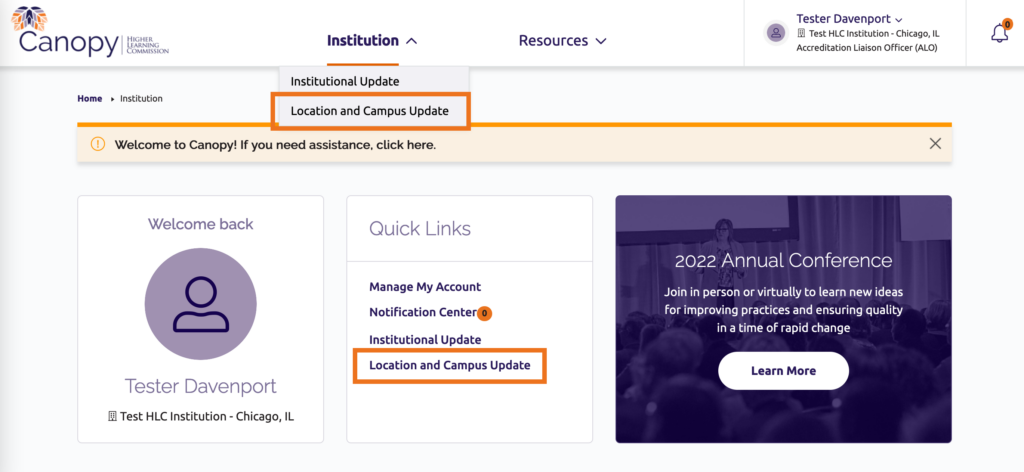
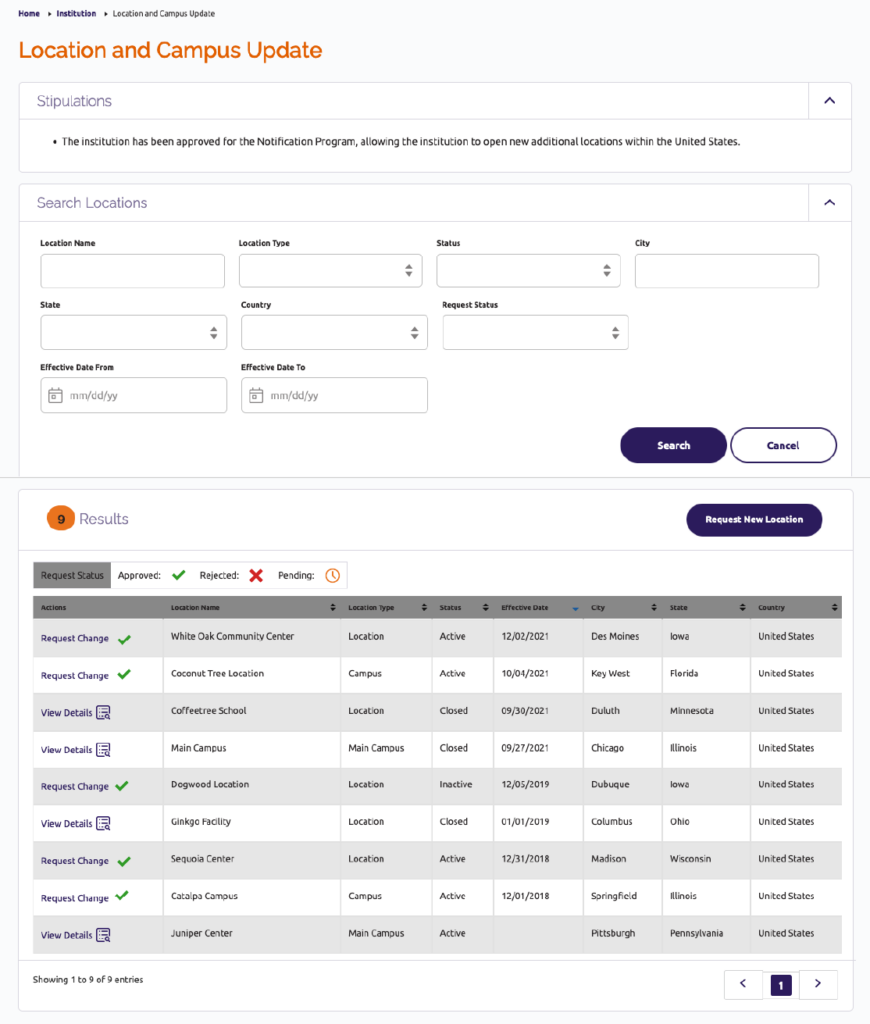
Clicking either of these links will take you to the Location and Campus Update main screen. This page includes:
- Your institution’s stipulation for the Notification Program for Additional Locations.
- Fields to search your institution’s additional locations and campuses.
- For institutions in the Notification Program, a link to add a new additional location.
- A list of all additional locations and campuses on file with HLC. This includes campuses and locations that are approved, open, inactive or closed.
The list includes an “Actions” column, which indicates whether you may request a change or view details for each campus and location. You may only view details and not make changes to the main campus and any closed campuses or locations. You may request changes for all other campuses and locations.
Note: The effective date listed for each campus and location indicates the date when changes were last made to that campus/location. If there is no effective date listed, it means the data was migrated from HLC’s previous system to Canopy.
Additional Locations
Edit a Location
You may request a change to any active or inactive additional location. Closed additional locations cannot be edited.
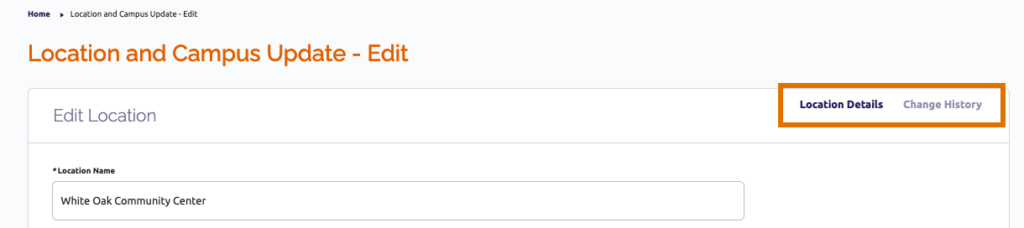
- On the Location and Campus Update page, click “Request Change” next to the additional location you’d like to edit. This will take you to an Edit Location page, which has two tabs:
- Location Details: A form page that provides all the details for the location. Make your edits to the location here.
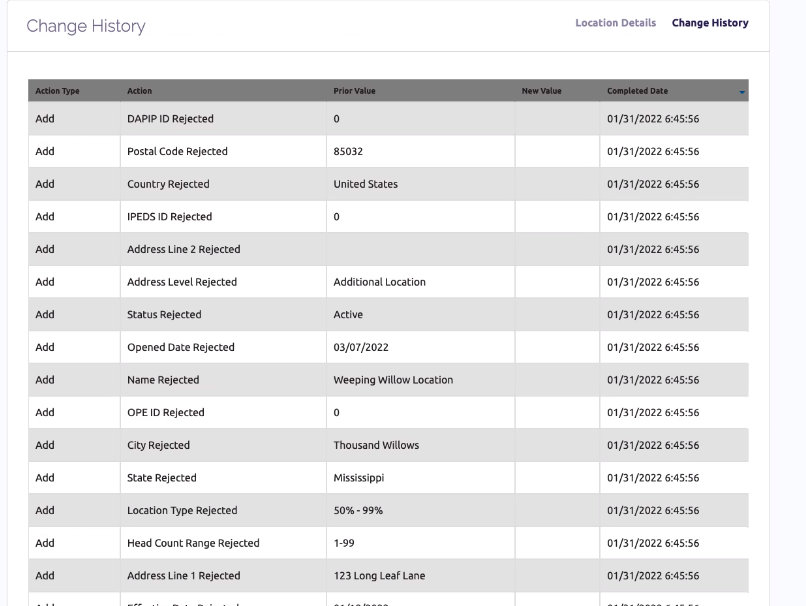
- Change History: A page that lists every change made to the location record.
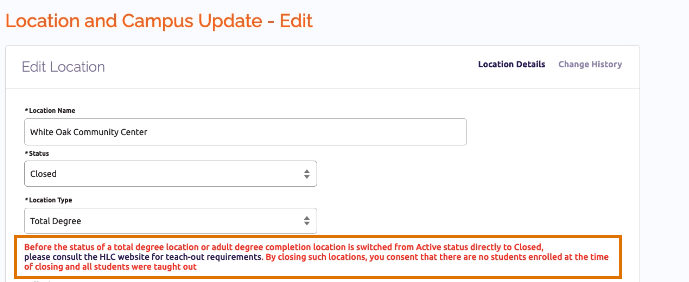
- On the Location Details tabs, you may edit the following information for the location:
- Other details, including the date the location was opened, entered in HLC’s records and approved, and the location’s address, may not be changed in Canopy. These fields are grayed out in the system.
- Name
- Status (active, inactive or closed)
- Location type (50–99%, adult degree completion, or total program)
- OPE ID number (optional)
- DAPIP ID number (optional)
- IPEDS ID number (optional)
- Head count range
- Other details, including the date the location was opened, entered in HLC’s records and approved, and the location’s address, may not be changed in Canopy. These fields are grayed out in the system.
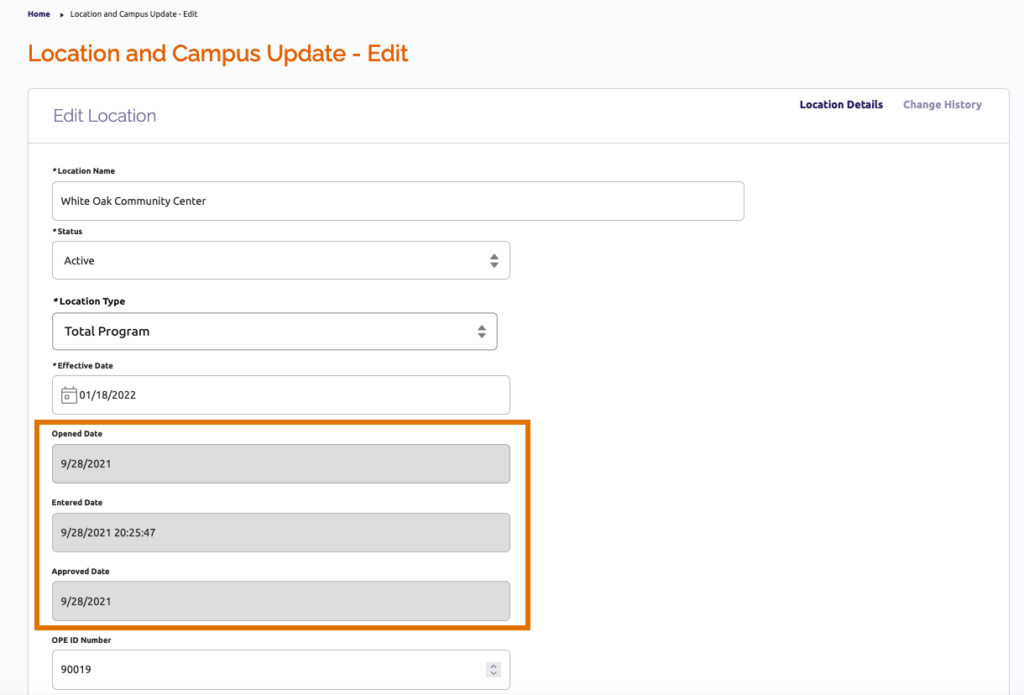
- In the Effective Date field, select the date that the changes you are requesting will be effective. This field is required.
- When you are done making changes, select one of the options at the bottom of the screen:
- Submit: Send the change request to HLC for review.
- Save as Draft: Save your edits and close the edit page. You will need to return to the location record to finish making changes and submit the request to HLC.
- Cancel: Discard your changes and return to the Location and Campus Update page.
Add a New Location
Only institutions in the Notification Program for Additional Locations may add new locations in Canopy. The stipulation listed at the top of the Location and Campus Update page will indicate whether your institution is in the Notification Program.
To add a new location:
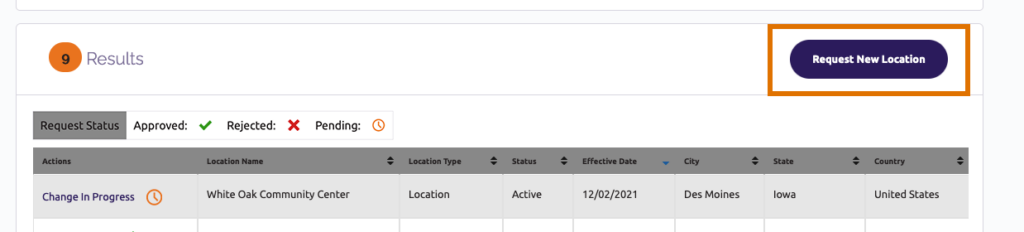
- On the Location and Campus Update page, click “Request New Location.”
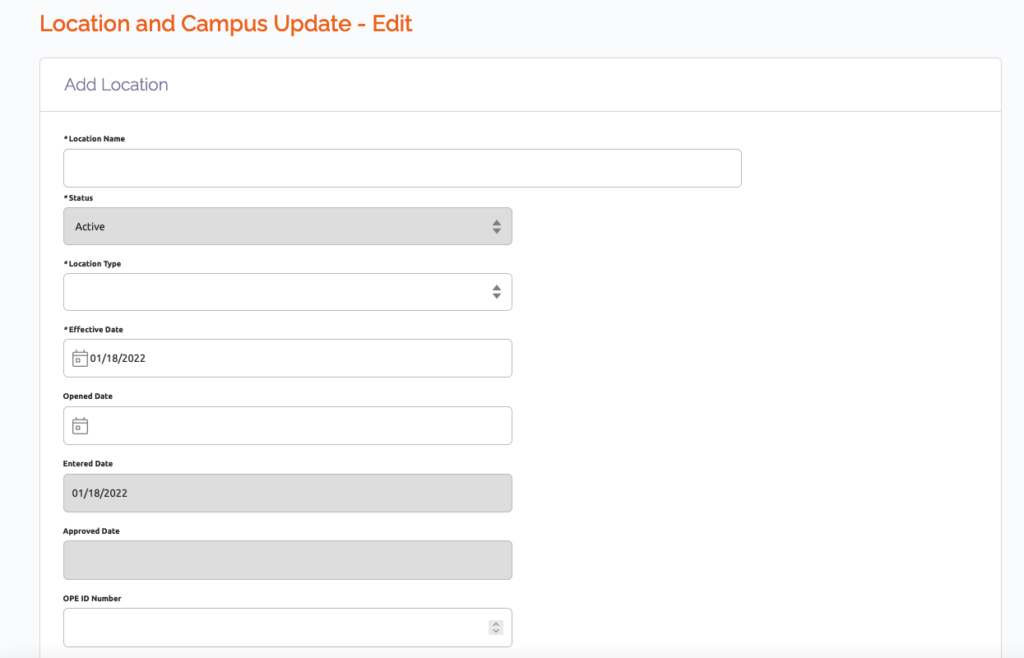
- Complete all editable fields on the Add Location form page. All fields with an asterisk (*) are required. You will not be able to enter the location’s status (set to active by default) or the location’s entered or approved dates (populated by Canopy).
- When you are done entering information, select one of the options at the bottom of the screen:
- Submit: Send the request for the new location to HLC for review.
- Save as Draft: Save the information you entered and close the edit page. You will need to return to the location record to finish the form and submit the request to HLC.
- Cancel: Discard the information you entered and return to the Location and Campus Update page.
Location Records Saved as Drafts
If you save changes to a location or a new location as a draft, you will see additional options in the location and campus update list and on the edit screen.
In the list of campuses and locations, the link in the Actions column for the location will change to “View Draft.” For a new location saved as a draft, a trash can icon will also be displayed in the Action column; click the icon to delete the new record. Click “View Draft” to continue editing the record and to submit if ready.

When you go back into the record, you will see additional options at the bottom of the Location Details tab:
- Submit: Send the change request to HLC for review.
- Save as Draft: Save your edits and close the edit page. You will need to return to the location record to finish making changes and submit the request to HLC.
- Cancel changes: Discard all changes, including any new edits and the ones you had previously saved as a draft.
- Cancel: Discard any new changes. Changes previously saved as a draft will be retained.

HLC Review and Change Request Status
Requests to change existing additional locations or to add a new additional location are sent to HLC staff for review. After a request is submitted, the status of the request will be displayed in the campus and locations list:

Request Pending
- For requests for changes to a location, this icon will appear in the Actions column.

- For new location requests, this icon will appear in the Status column. Hover over the icon to see the date the pending status change will take place.


Request Approved
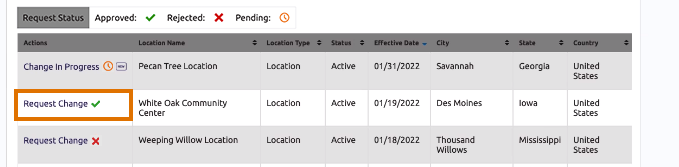

Request Denied
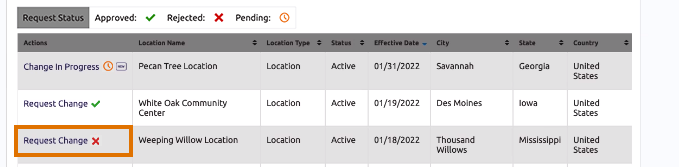
When a request is approved or denied, that action will be listed in the location’s Change History. If a request you submit is denied, you will also receive an email from HLC explaining why the request was denied. You may adjust your request to address the reason for the denial and submit the request again for HLC review.
Branch Campuses
Edit a Branch Campus
You may request a change to any active branch campus. Closed branch campuses and the institution’s main campus cannot be edited.
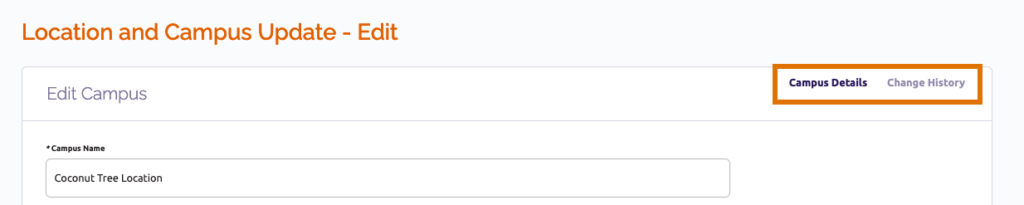
- On the Location and Campus Update page, click “Request Change” next to the branch campus you’d like to edit. This will take you to an Edit Campus page, which has two tabs:
- Campus Details: A form page that provides all the details for the campus. Make your edits to the campus here.
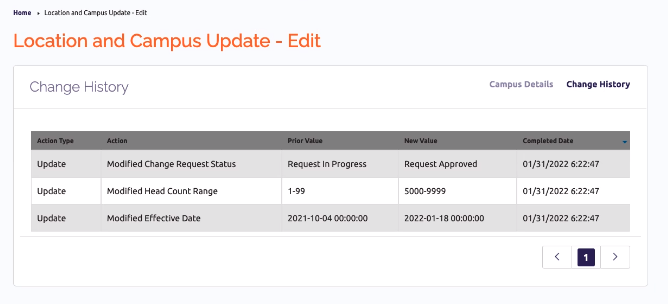
- Change History: A page that lists every change made to the campus record.
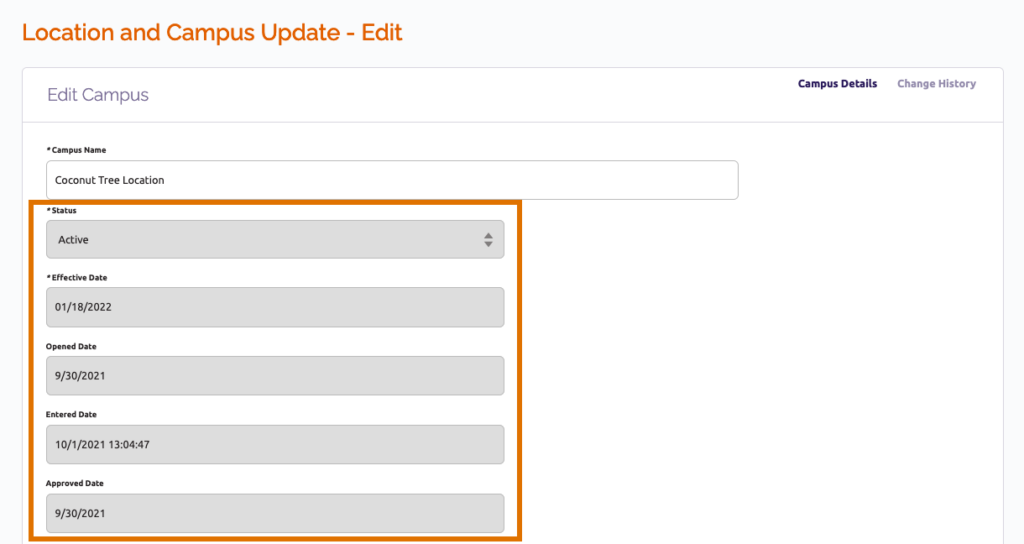
- On the Campus Details tab, you may edit the following information for the campus:
- Name
- OPE ID number (optional)
- DAPIP ID number (optional)
- IPEDS ID number (optional)
- Head count range
- Other details may not be changed in Canopy. This includes the campus status; the dates it was opened, entered in HLC’s records and approved; and the campus address. These fields are grayed out in the system.
- When you are done making changes, select one of the options at the bottom of the screen:
- Submit: Send the change request to HLC for review.
- Save as Draft: Save your edits and close the edit page. You will need to return to the campus record to finish making changes and submit the request to HLC.
- Cancel: Discard your changes and return to the Location and Campus Update page.
After you submit changes to a campus record, they will be processed automatically and displayed in Canopy. The changes will appear in the Change History tab of the campus record.
Campus Records Saved as Drafts
If you save changes to a campus as a draft, you will see additional options in the location and campus update list and on the edit screen.
In the list of campuses and locations, the link in the Actions column for the campus will change to “View Draft.” Click “View Draft” to continue editing the record and to submit if ready.
When you go back into the record, you will see additional options at the bottom of the Campus Details tab:
- Submit: Send the change request to HLC for review.
- Save as Draft: Save your edits and close the edit page. You will need to return to the record to finish making changes and submit the request to HLC.
- Cancel changes: Discard all changes, including any new edits and the ones you had previously saved as a draft.
- Cancel: Discard any new changes. Changes previously saved as a draft will be retained.
User Guide Topics
All Users
Institutions
Peer Reviewers
Peer Corps Applicants

Related Resources

Questions?
Submit a Canopy Help Request